
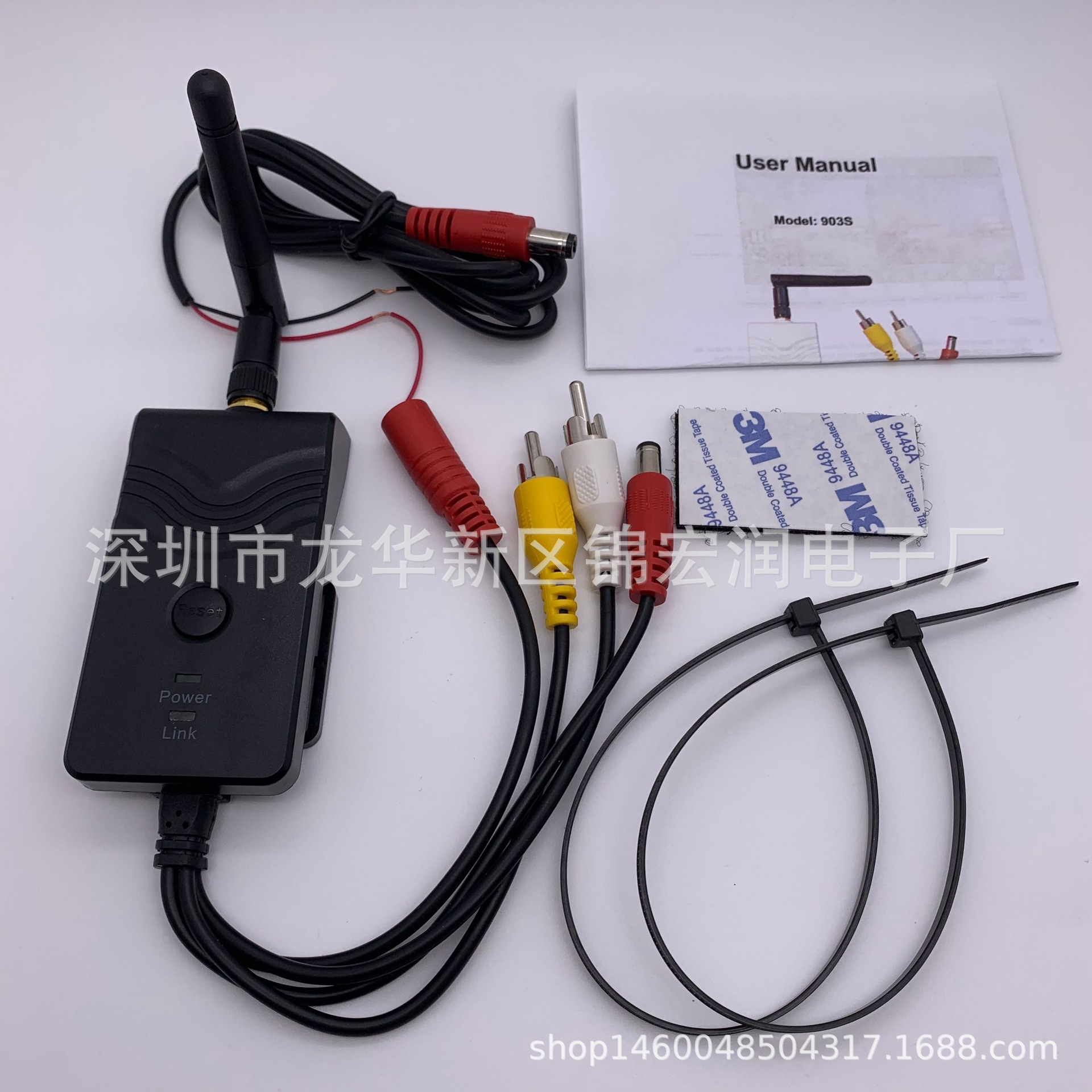
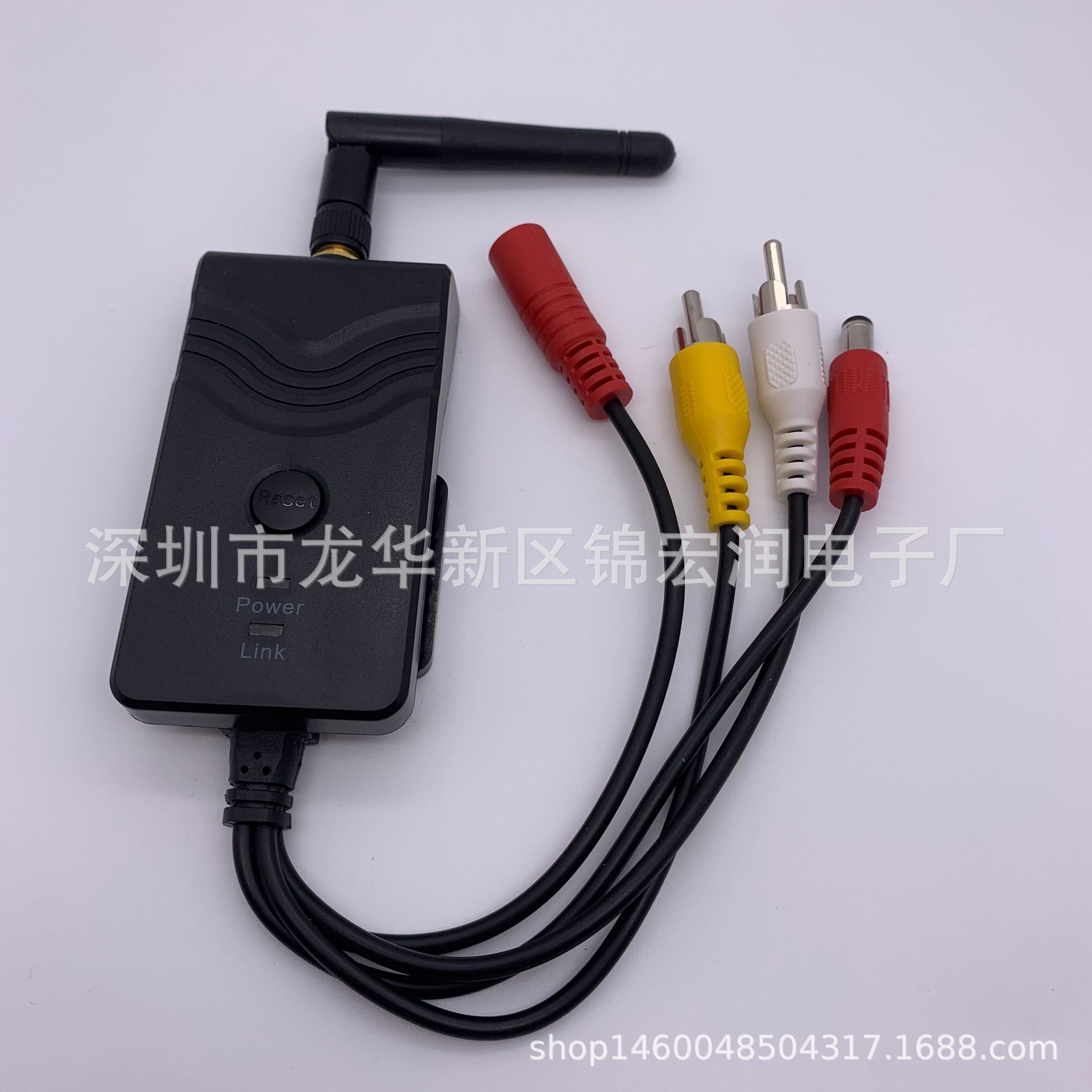
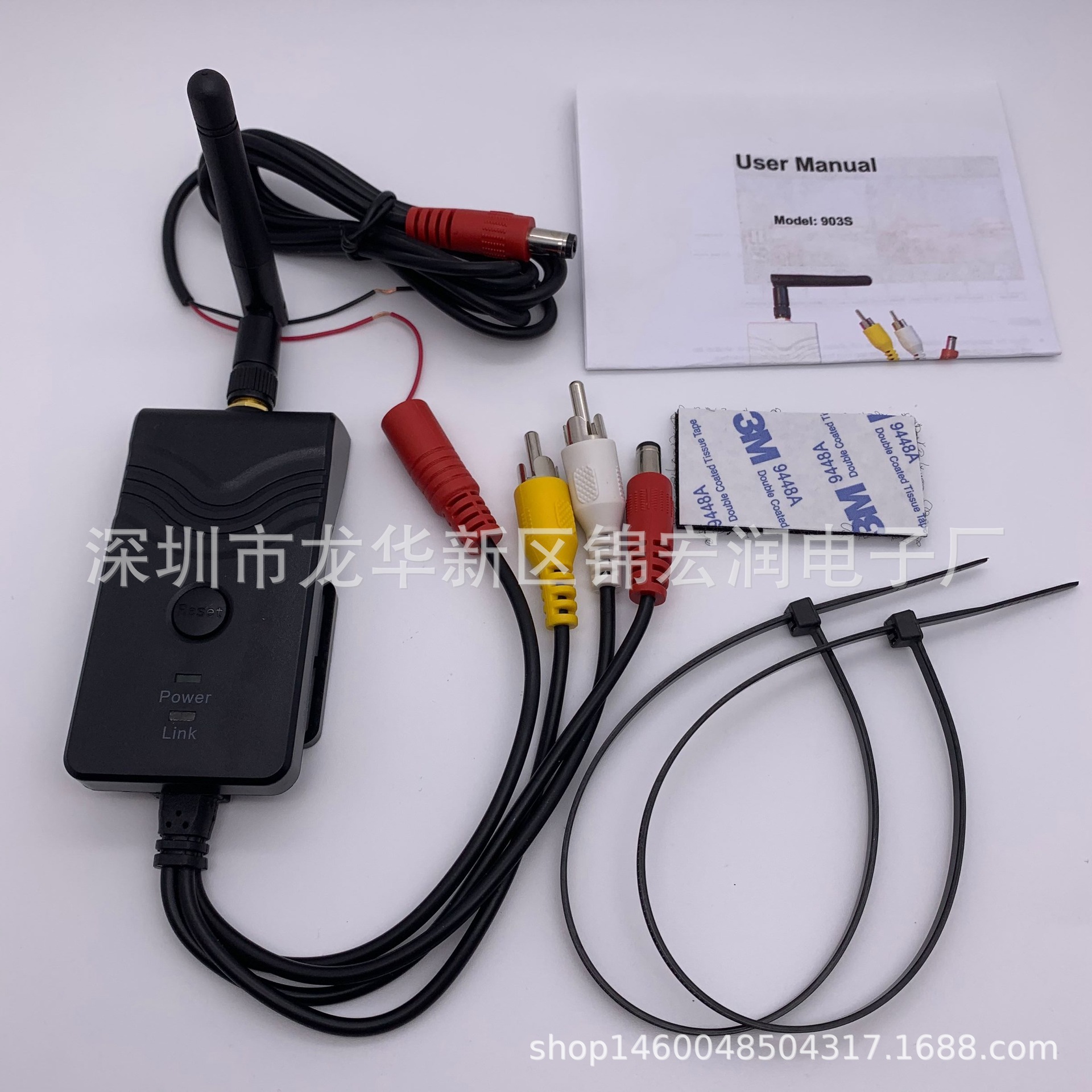
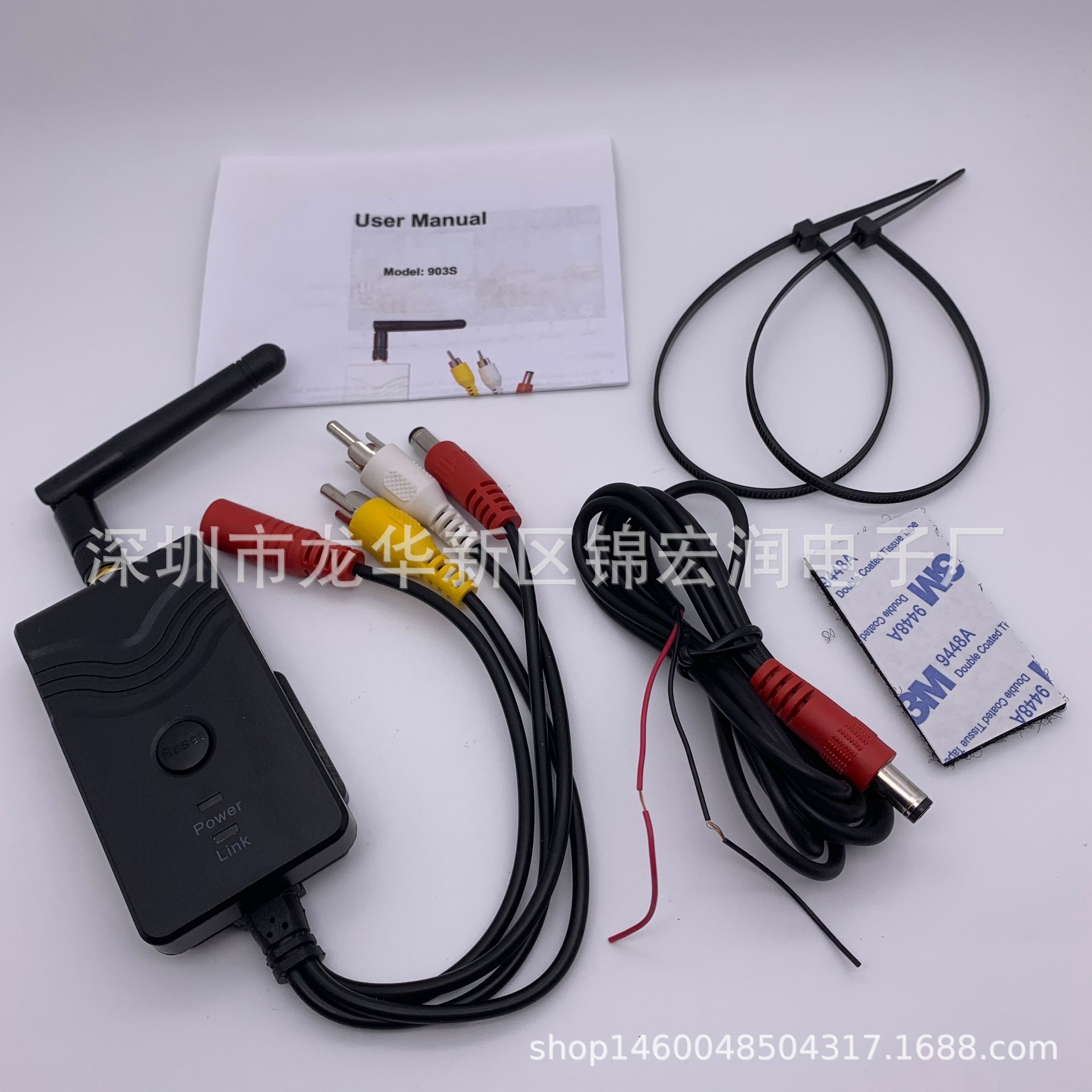
FPV специализированный AV видео WiFi ретранслятор, WiFi передатчик 903S (обновленная версия 903W) черный
Offer ID: 621216739851
Статистика продавца
Свойства товара
Описание товара
903S是903W的升级版!!!
同903W的区别是:多了音频,画质更清晰,画面无切割,可以支持多部手机同时观看视频,软件界面多了3D双画面显示,支持手机录制,支持设备端录制(要加内存卡),
适用于:无线监控,视频录像机,无线倒车后视,机顶 盒工程宝,等等
产品特性:
l WIFI音视频传输器,同时支持音频,视频,画质更清晰,画面无切割,可以支持多部手机同时观看视频,可以3D双画面显示,支持手机录制,支持设备端录制。
l 用户在FPV飞行中可充分利用智能终端作为显示器和录像机,简单便捷
l 输入图传接收机AV信号,转发距离(无遮挡)大于150米,也可直接使用
l 输入图传接收机AV信号条件下,无信号、弱信号均为雪花,可最大限度拯救您的爱机
l 通过WIFI无线发送至安卓、苹果系统的手机或平板,WiFi对2.4G遥控器无干扰
l APP软件简单易用,支持显示、缩放、录像、截图和回放,支持设置热点密码
l 9-30V宽电压直流电源供电,同时带电源输出口,方便为图传供电
l 支持安卓4.3或更高系统版本,苹果iOS支持10.3或更高系统版本,特别针对iPHONE5优化
l 延迟小,安卓系统手机、平板不大于150毫秒,苹果系统手机、iPAD平板约100毫秒
参数表
Item | Specifications | |
发射器 | 发射频率 | 2400MHz-2483.5MH |
Modem模式 | 802.11b: DSSS(CCK,DQPSK,DBPSK) | |
传输距离 | >150m | |
视频输入格式 | CVBS(NTSC/PAL) | |
视频输入幅度 | 1.0Vp-p | |
视频输入阻抗 | 75Ohm | |
音频输入幅度 |
| |
音频阻抗 |
| |
视频帧数 | 30fps | |
视频格式 | VGA | |
视频压缩 | H.264 | |
无线支持 | IEEE 802.11b, IEEE 802.11g | |
电源 | DC 9-30V | |
电流 | 250mA (Max) | |
加密模式 | WPA2 | |
防水 | Yes | |
重量 | 80+-5g | |
尺寸 | 78*43*18mm | |
| 工作温度 | -10℃~+50℃ |
工作速度 | 15%~85% RH | |
安卓系统的操作使用
¨安装APP软件:
- 1. GOOGLE PLAY store可以下载,也可由客服在线发送。
- 2. 查找”WIFIAV-HD”,并下载安装,或者扫描下面的二维码,下载安装
- 3. 使用APP软件,按照如下步骤:
- 4. 打开智能终端并进入
¨连接WIFI:
- 1. 打开智能终端的WIFI,搜索AP热点.设备SSID为“WIFIAV-HD”,输入密码(默认密码: 12345678 )。
- 2. 点击智能终端“ ”图标,运行APP。
¨监控视频:
打开APP,如WIFI连接正常, APP可以看到画面。
注意:
l 如背景变黑或画面停顿,请退出APP,同时检查WIFI连接是否正常。如连接不正常请重新进入。
l 如显示卡顿,请清理手机,释放更多的运行内存。
¨设置:
点击进入设置菜单。你可以设置SSID和密码,也可以点其他图标来实现另外的功能
注意:
l 用户可长按RESET按钮10秒恢复默认设置
iOS苹果系统的操作说明
¨安装APP软件:
- 1. 打开智能终端,进入APP store苹果应用商店
- 2. 搜索”WIFIAV-HD”,并下载安装,或者扫描下面的二维码下载安装。
- 3. 使用APP软件,按照如下步骤:
¨连接WIFI:
- 1. 打开智能终端的WIFI,搜索AP热点.设备SSID为“WIFIAV-HD”,输入密码(默认密码: 12345678 )。
- 2. 击智能终端“ ”图标,运行APP。
¨监控视频:
打开APP , ,如WIFI连接正常, APP可以看到画面。
注意:
l 如背景变黑或画面停顿,请退出APP,同时检查WIFI连接是否正常。如连接不正常请重新进入。
¨设置:
点击进入设置菜单。你可以设置SSID和密码,也可以点其他图标来实现另外的功能
注意:
l 用户可以长按RESET按钮10秒恢复默认设置
Product Features
l WIFI Audio and Video Transmitter transmission, support iPhone, iPad, and Android phone
l Adjustable multiple angle camera viewing, with image-flip ability
l Camera & transmitter rainproof, dustproof and shockproof
l Minimum illumination less than 0.5 Lux, digital compensation for clear night vision
l Easy installation, wiring free
l 12-30VDC car power supply
l Transmission distance with no obstacle more than 150meters
l The client terminal shall support Android 2.2 or above, and iOS shall support Version 4.3 or above.
Specifications
Item | Specifications | |
Transmitter | Transmitting frequency | 2400MHz-2483.5MH |
Modem mode | 802.11b: DSSS(CCK,DQPSK,DBPSK) | |
Transmission distance with no obstacle | >150m | |
Video input Format | CVBS(NTSC/PAL) | |
Video Input Level | 1.0 Vp-p | |
Video Input Impedance | 75 Ohm | |
Audio Input Level | 1.0 Vp-p | |
Audio Input Impedance | 600 Ohm | |
Frame rate | 30fps | |
Video resulutions | VGA | |
Video compression | H.264 | |
Wireless protocols | IEEE 802.11b, IEEE 802.11g | |
Power supply | DC 9-30V | |
Consumption current | 250mA (Max) | |
Encryption mode | WPA2 | |
Rainproof | Yes | |
Weight | 80+-5g | |
Dimensions | 78*43*18mm | |
| Operation tempreature | -10℃~+50℃ |
Operation humidity | 15%~85% RH | |
Operations for Android system client
¨Installation APP software :
- 1. GOOGLE PLAY store.
- 2. Search ”WIFIAV-HD” software, and download.Or scan the QR code, Download.
- 3. Install the APP software, as the following interface:
- 4. Turn on the intelligent mobile device terminal and enter
¨Connection WIFI:
- 1. Click”wi-fi”, select your camera, and connect the wifi of the intelligent mobile device terminal to the wifi of the tool. The initial SSID of the device is “WIFIAV-HD”, then type in the password of the device(default password: 12345678 ).
- 2. Click the “” icon in the main interface of the intelligent mobile device terminal.
¨View the video:
Open the app, and if the connection between the wifi of the tool and the intelligent mobile device terminal is successful, the images transmitted from the wifi camera tool can be seen in the APP, as shown in the figure.
Notice:
l When the background is black or the image is still, please exit the app, and check whether the wifi connection is normal. Then click again the app icon to enter into the software interface.
¨Settings:
Press this icon to enter into the settings menu. You can change the default factory SSID and password of the wifi camera tool , and the other icons can realize some other functions
Notice:
l User could long press the “RESET” buttonof the transmitter for 10 seconds to reset the default factory SSID and password.
Operations for iOS Apple system client
¨Installation APP software :
- 1. Turn on the intelligent mobile device terminal and enter APP store.
- 2. Search ”WIFIAV-HD” software, and download.Or scan the QR code, Download
- 3. Install the APP software, as the following interface:
¨Connection WIFI:
1. Click”wi-fi”, select your camera, and connect the wifi of the intelligent mobile device terminal to the wifi of the tool. The initial SSID of the device is “WIFIAV-HD”, then type in the password of the device(default password: 12345678 ).
- 2. Click the “” icon in the main interface of the intelligent mobile device terminal.
¨View the video:
Open the app , and if the connection between the wifi of the tool and the intelligent mobile device terminal is successful, the images transmitted from the wifi camera tool can be seen in the APP, as shown in the figure.
Notice:
l When the background is black or the image is still, please exit the app, and check whether the wifi connection is normal. Then click again the app icon to enter into the software interface.
¨Settings:
Press this icon to enter into the settings menu. You can change the default factory SSID and password of the wifi camera tool , and the other icons can realize some other functions
Notice:
l User could long press the “RESET” button of the transmitter for 10 seconds to reset the default factory SSID and password.